From SimplyMeet.me
No edit summary |
No edit summary |
||
| Line 16: | Line 16: | ||
</div> | </div> | ||
<p class="no-margin"> | <p class="no-margin"> | ||
<li>Enter Whereby's API Key in the API key field.</li> | <li>Enter '''Whereby's API Key''' in the API key field.</li> | ||
</p> | </p> | ||
<div class="intercom-container"> | <div class="intercom-container"> | ||
| Line 22: | Line 22: | ||
</div> | </div> | ||
<p class="no-margin"> | <p class="no-margin"> | ||
<li>Click <strong> | <li>Click <strong>Save</strong> button.</li><br> | ||
<li>In your [https://secure.simplymeet.me/event_types/#/ Meeting Types], choose the <strong>Whereby </strong>meeting link option from the <strong>Video meetings </strong>section.</li> | <li>In your [https://secure.simplymeet.me/event_types/#/ Meeting Types], choose the <strong>Whereby </strong>meeting link option from the <strong>Video meetings </strong>section.</li> | ||
</p> | </p> | ||
Latest revision as of 20:05, 17 August 2026
The Whereby integration automates your clients' booking by generating a unique video meeting link for every meeting.
When a new meeting is scheduled with SimplyMeet.me, a Whereby video meeting link is automatically created and added to the meeting details, calendar and email notifications.
Getting started with Whereby integration
- Go to Whereby website and reach out to the sales team. This is only available to Whereby Embedded customers.
- Go to Integrations & Plugins in SimplyMeet.me.
- Click the Enable button in the Whereby integration section.
- Enter Whereby's API Key in the API key field.
- Click Save button.
- In your Meeting Types, choose the Whereby meeting link option from the Video meetings section.
- Click Save button.
- Now, when someone schedules a new meeting with you, the Whereby video meeting link will be automatically generated.


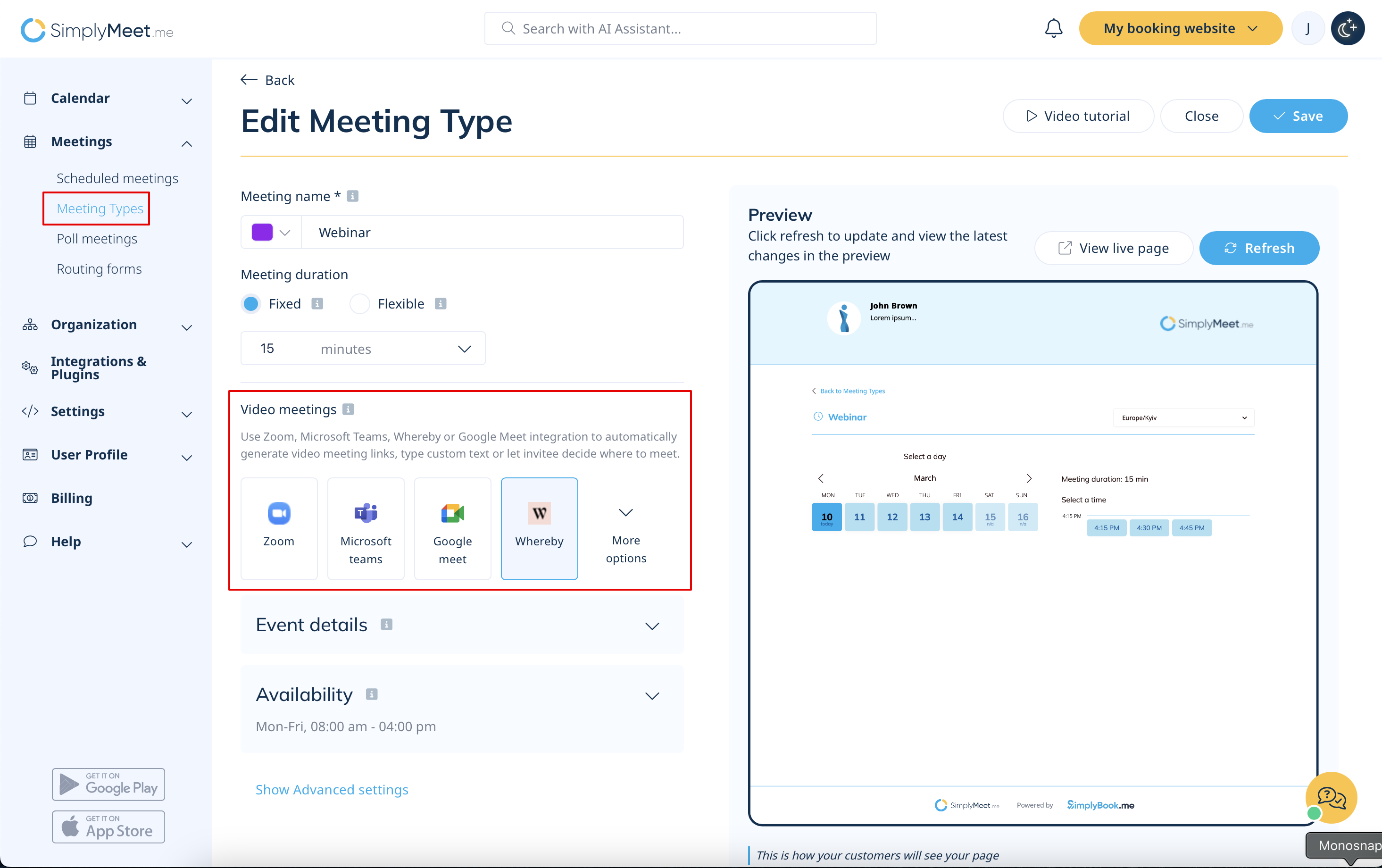
When Whereby integration is enabled and Whereby meeting link option from the Video meetings section in the Meeting Type is selected the Web conferencing details provided upon confirmation text will be visible in the Location details on the scheduling page.
