No edit summary |
No edit summary |
||
| (2 intermediate revisions by the same user not shown) | |||
| Line 5: | Line 5: | ||
;How to set | ;How to set | ||
<p> | <p> | ||
1. Navigate to your [https://secure.simplymeet.me/integrations Integrations] page.</p> | 1. Navigate to your '''[https://secure.simplymeet.me/integrations Integrations & Plugins]''' page.</p> | ||
<p> | <p> | ||
2. | 2. Select '''User integrations''' tab and click '''Enable''' next to '''SBPay for User''' if you plan to use it for a single account.</p> | ||
[[File: | [[File:SBPay for User Navigation.png|1200px|center|link=https://help.simplymeet.me/index.php?title=File:SBPay_for_User_Navigation.png]] | ||
<br><br> | <br><br> | ||
<p>Or enable '''SBPay for Organisation'''* if you are | <p>Or go to '''Organization integrations''' tab and enable '''SBPay for Organisation'''* if you are the owner of the organization.</p> | ||
[[File: | [[File:SBPay for Organizations Navigation.png|1200px|center|link=https://help.simplymeet.me/index.php?title=File:SBPay_for_Organizations_Navigation.png]] | ||
<br><br> | <br><br> | ||
<p> | <p> | ||
3. If you have paid subscription you can also enable '''PRO''' version(here on registration or later while editing the integration settings), that will open access to refunds and sending payments links from SBPay.me interface.</p> | 3. If you have paid subscription you can also enable '''PRO''' version (here on registration or later while editing the integration settings), that will open access to refunds and sending payments links from SBPay.me interface.</p> | ||
<p> | <p> | ||
So just fill in the form with your company details and hit '''Activate SBPay!''' button at the top.</p> | So just fill in the form with your company details and hit '''Activate SBPay!''' button at the top.</p> | ||
<p> | <p> | ||
[[File: | [[File:SBPay Pro Navigation.png|1200px|center|link=https://help.simplymeet.me/index.php?title=File:SBPay_Pro_Navigation.png]]</p> | ||
<p> | <p> | ||
4. Go to the SBPay interface using the corresponding button and choose '''Payment processors''' tab.</p> | 4. Go to the SBPay interface using the corresponding button and choose '''Payment processors''' tab.</p> | ||
Latest revision as of 18:38, 17 August 2026
Collect payments from clients at time of booking with PayPal, Stripe, Adyen and many other processors via SBPay in just a few simple steps.
You can use the integration on the user account level as well as organization one (with paid subscriptions).
- How to set
1. Navigate to your Integrations & Plugins page.
2. Select User integrations tab and click Enable next to SBPay for User if you plan to use it for a single account.

Or go to Organization integrations tab and enable SBPay for Organisation* if you are the owner of the organization.

3. If you have paid subscription you can also enable PRO version (here on registration or later while editing the integration settings), that will open access to refunds and sending payments links from SBPay.me interface.
So just fill in the form with your company details and hit Activate SBPay! button at the top.

4. Go to the SBPay interface using the corresponding button and choose Payment processors tab.
5. Click on the desired payment system name, select to Activate it.
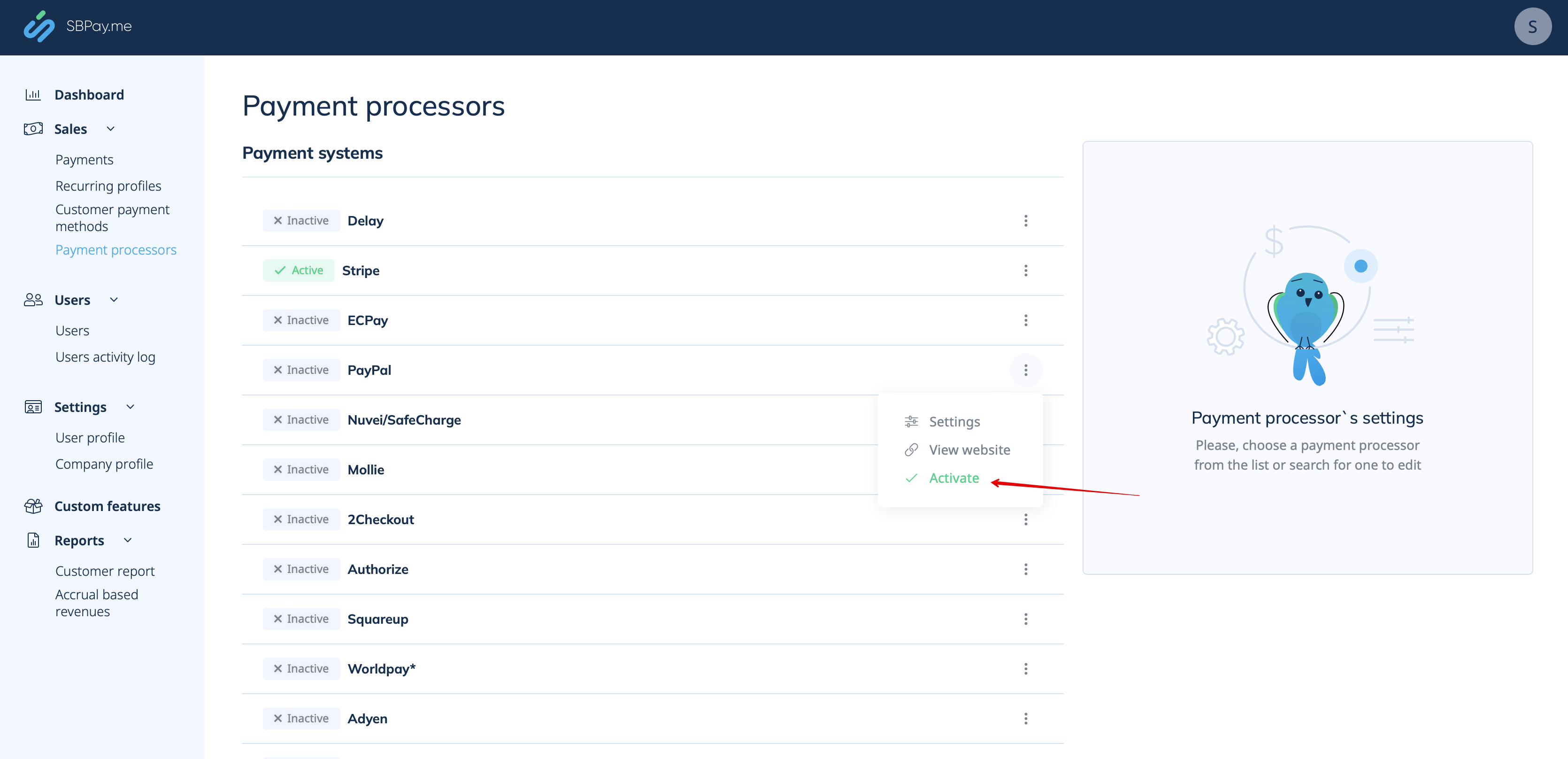
6. Add your credentials for the chosen payment system and save settings.
7. Get back to your SimplyMeet.me account and navigate to Meeting types page to add prices for the desired items there.
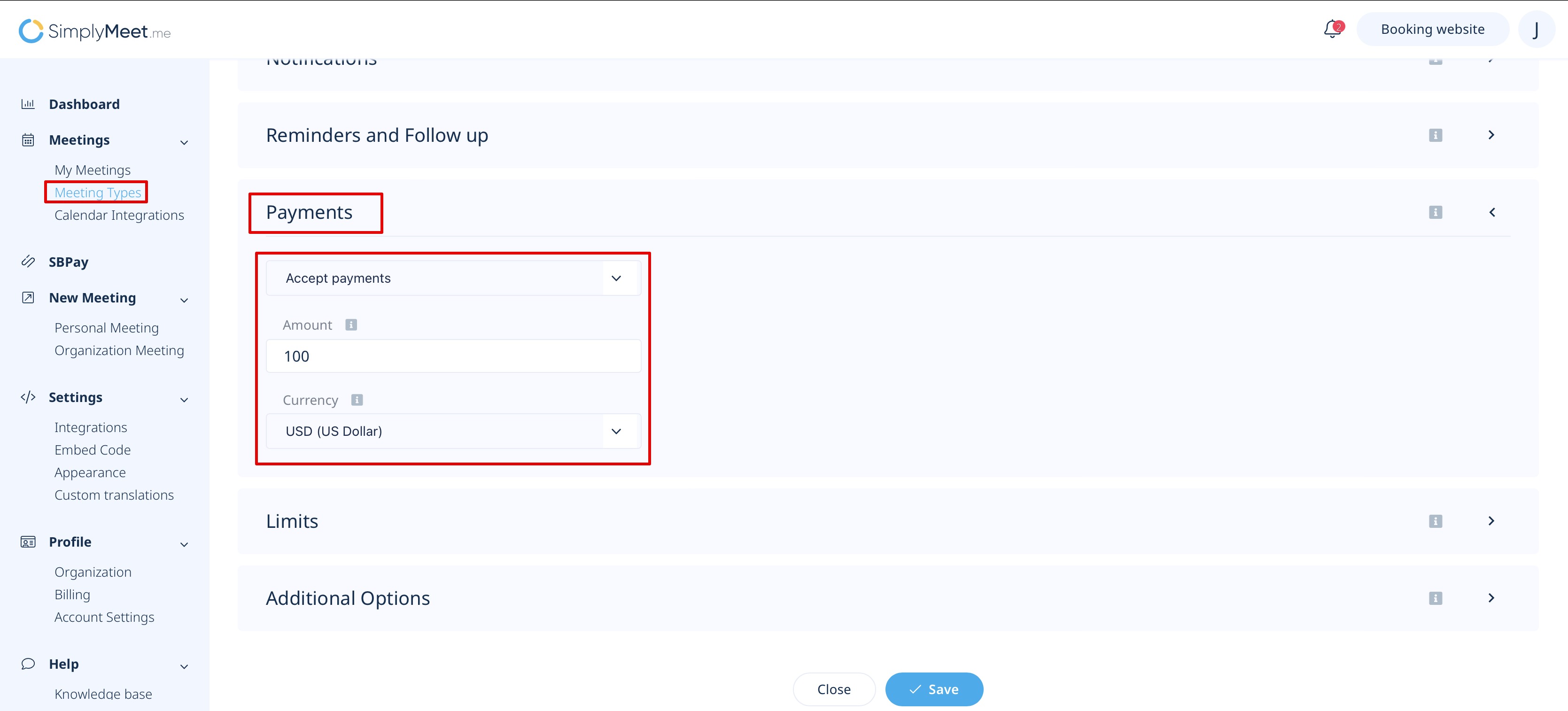
8. As long as everything is added and saved your customers will be able to make payments online to confirm their appointments.
*You can also have both levels enabled and decide whether to set organization level as a priority or not.
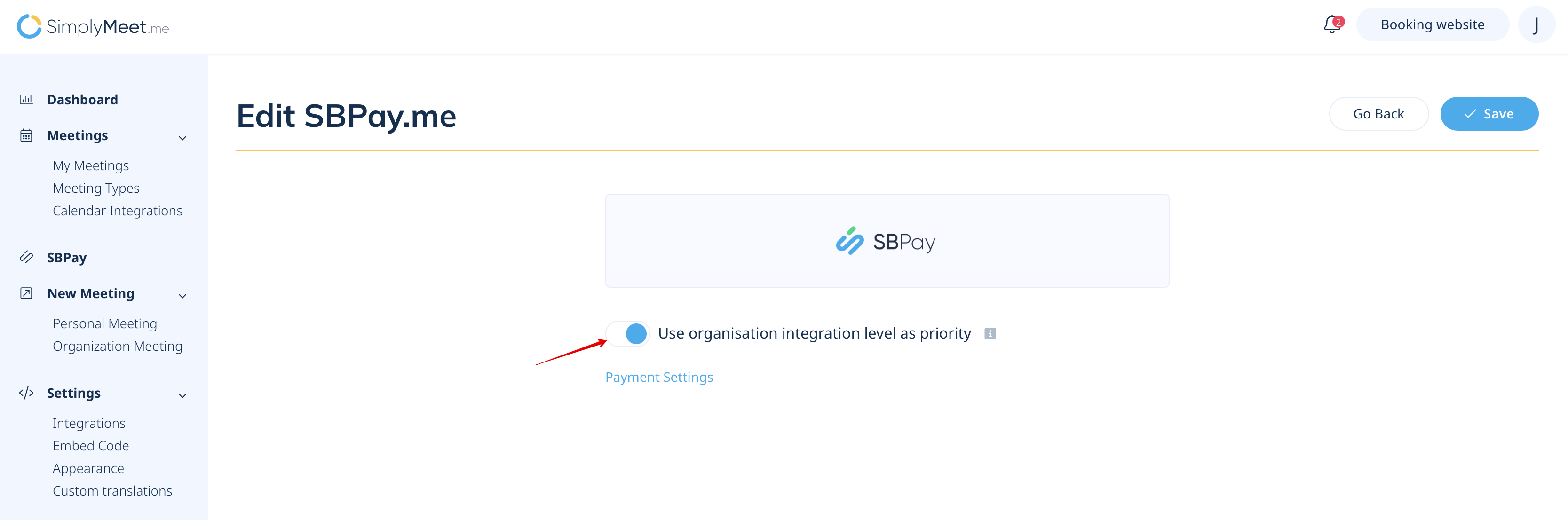
Please note! If this option is "On" all the payments will be processed through organisation SBPay.me account.
If you disable it then each user integration will be used for payments.
Available reports in the SBPay.me system
SBPay.me is quite a new system but already has several useful reports that you can use to track your payments:
Please check the details here
