From SimplyMeet.me
No edit summary |
No edit summary |
||
| Line 24: | Line 24: | ||
:3. In '''Meeting duration''' switch to '''Flexible duration''' and add all the duration options that you would like to be available to choose from the client side. | :3. In '''Meeting duration''' switch to '''Flexible duration''' and add all the duration options that you would like to be available to choose from the client side. | ||
:Save settings. | :Save settings. | ||
[[File: | [[File:114 1.png|1200px|center|link=https://help.simplymeet.me/index.php?title=File:114_1.png]] | ||
<br><br> | <br><br> | ||
:4. As the result there will be a drop-down menu on the time step where the customers will be able to choose the desired duration and book the corresponding meeting. | :4. As the result there will be a drop-down menu on the time step where the customers will be able to choose the desired duration and book the corresponding meeting. | ||
[[File:Select duration on booking site.png|1000px|center|link=https://help.simplymeet.me/images/4/43/Select_duration_on_booking_site.png]] | [[File:Select duration on booking site.png|1000px|center|link=https://help.simplymeet.me/images/4/43/Select_duration_on_booking_site.png]] | ||
<br><br><br><br> | <br><br><br><br> | ||
Latest revision as of 17:36, 14 August 2026
Custom duration
You can set custom duration in the Meeting Types.
- Edit existing Meeting Type or create a new one.
- In the Meeting duration field, type custom value, e.g. 120 if you want your meeting last for 2 hours.
- Choose value "Custom "120" min" from the dropdown.
- Click Save button at the bottom to save the Meeting Type.

Flexible duration
You can also allow your customers to select the desired duration from their side.
- 1. Enable Flexible duration on the Integrations & Plugins page.
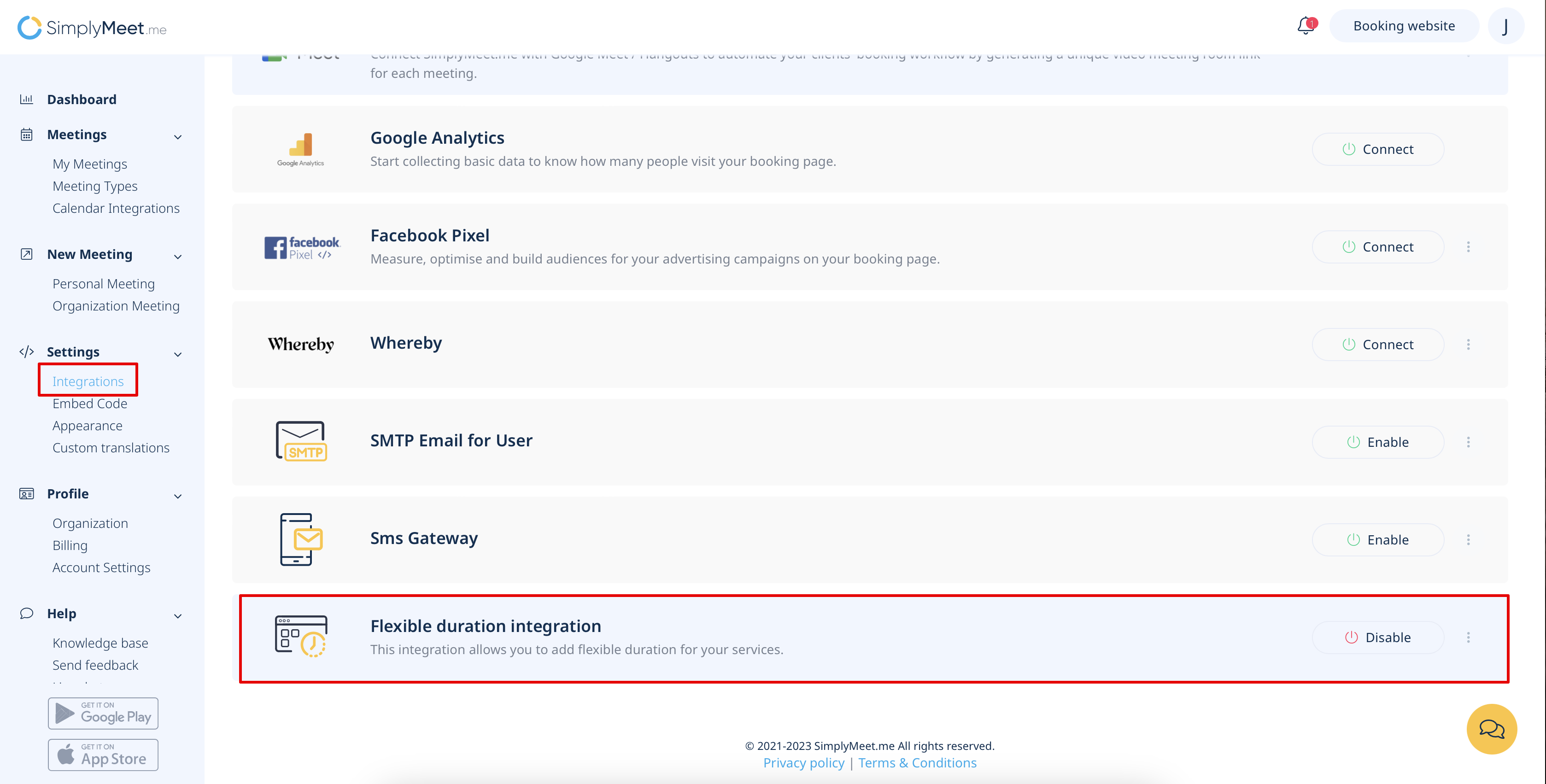
- 2. Navigate to your Meeting types page and create new meeting type or edit the existing one.

- 3. In Meeting duration switch to Flexible duration and add all the duration options that you would like to be available to choose from the client side.
- Save settings.

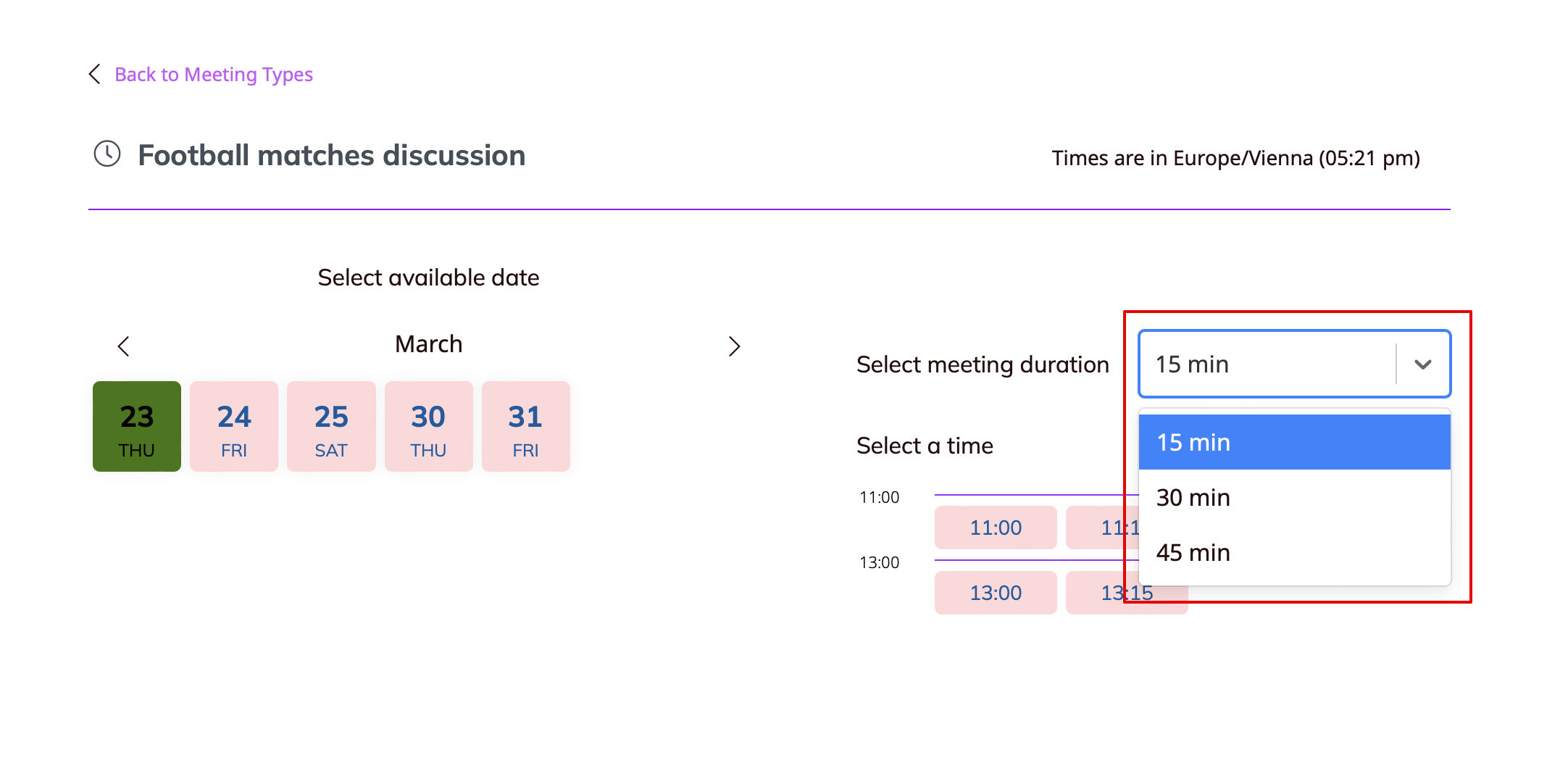
- 4. As the result there will be a drop-down menu on the time step where the customers will be able to choose the desired duration and book the corresponding meeting.